TAKEFRAME / PRODUCT VIDEO EXAMPLE · CHECKED 2026-10-23
Animate a product photo into a short video
See the original MORROW product photo and one actual eight-second Veo 3.1 result. Then plan a single shot from your own image.
Public preview: watch an existing sample. New generation and checkout are closed.
The product photo and actual video
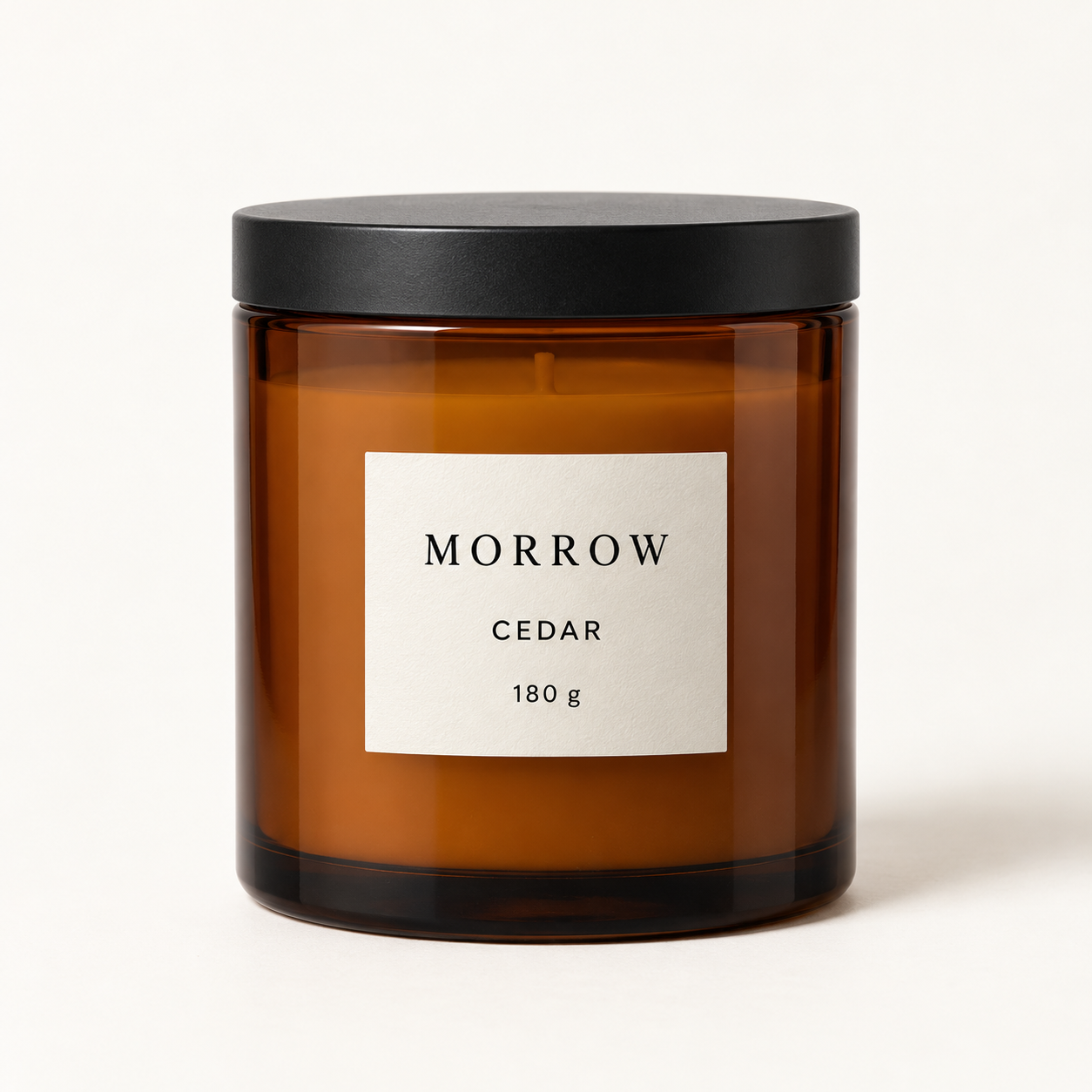
Download the original Veo example MP4 ↓
| Detail | This example |
|---|---|
| Model and route | Veo 3.1 requested through Rabbit API; not a direct Google API integration |
| Requested setting | 8 seconds, 720p |
| Received file | 1280 × 720 pixels, 8 seconds, MP4 with an audio track |
This particular output introduces hand movements that are not present in the reference photo. It is not a demonstration of strict product fidelity or of the untested gentle camera move suggested below. Check people or objects the model adds, as well as the product itself. Those measurements describe this file. One selected result does not establish typical quality, reliability, cost or the result another image will produce. The original photo is square and the video is landscape, so check what happens around the product and at the frame edges.
Plan one image and one continuous shot
A product photo to video task works best as a small, specific brief. Choose an existing reference image you own or are authorized to process. Keep the product clear, and decide which details must remain recognizable: the outline, cap, label, material or packaging.
Choose one camera direction, such as a gentle push-in, rather than asking for several angles, a scene change and a complete advertisement at once. State what should stay steady, then describe the movement. A generated single shot is not a finished ad: editing, captions, voice-over and claims about the product need their own review.
A suggested prompt you can adapt
The following prompt has not been tested and is not the original prompt that produced the clip above. It is a starting point for describing a reference image and one camera move.
Use the supplied product photo as the visual reference for one continuous product shot. Keep the candle jar, label, lid and proportions consistent with the reference. Make one slow, gentle push-in with steady lighting. Avoid cuts, scene changes, added text or extra objects.
Replace the candle details with the features of your own product. Requests to preserve details are instructions, not a guarantee that a model will follow them. Keep the task focused enough that you can inspect the result against the original image.
Check the details before using a clip
- Small print and logos: pause on several frames. Look for changed letters, invented marks or labels that shift as the camera moves.
- Shape and proportions: compare the jar, lid, corners, handle or other distinctive parts with the reference. Watch for stretching and changing geometry.
- Edges and background: inspect the full frame, including cropped boundaries, reflections, shadows and any new objects.
- Motion and sound: play the full eight seconds. Check for jumps, an abrupt ending and audio that does not fit your intended use.
A completed video can still need revision or be unsuitable for use. We do not promise distortion-free text, exact product geometry or a complete advertisement. Review the applicable content and publishing rights before using any generated material.
Prepare your own product-photo brief
On the current public preview, you can choose an image and draft one shot in your browser. That local preparation does not upload your image, generate a video or take payment. New generation and checkout remain closed.
Prepare an image locally ↗ Watch the existing Veo example ↑
Looking for the earlier model test? The original Topview T1 example and guide cover a separate four-second request and file. It is not the Veo clip on this page. Read about Takeframe or our content rules.